
How to Use VoIP on Your Smartphone
You’re about to unlock a powerful new way to communicate, right from the device that’s almost always in your hand: your smartphone. Voice over Internet Protocol, or VoIP, isn’t just for clunky desk phones anymore. It’s a versatile, cost-effective, and incredibly convenient technology that can transform how you make and receive calls, both personally and professionally. Forget about expensive international calls or worrying about using up your mobile plan minutes. With VoIP, you’ll be harnessing the power of the internet to connect with anyone, anywhere.
Before you dive into the nitty-gritty of setting up VoIP on your phone, it’s beneficial to grasp what you’re actually doing. VoIP, at its core, converts your voice into digital packets and sends them over the internet. This is a fundamental shift from traditional phone lines that rely on circuit switching. What does this mean for you? Flexibility, cost savings, and a host of advanced features that enhance your communication experience.
Why Choose VoIP for Your Mobile Device?
You might be wondering why you should even bother with VoIP when your smartphone already makes calls. The answer lies in several compelling advantages:
Significant Cost Savings
This is often the biggest draw for individuals and businesses alike. You can make calls over Wi-Fi or your mobile data plan, often at a fraction of the cost of traditional cellular calls. International calls, in particular, become dramatically cheaper, or even free when using app-to-app communication. Imagine talking to family abroad without watching the clock or making a business call to a client in another country without incurring exorbitant roaming charges.
Enhanced Flexibility and Mobility
Your phone becomes your office phone, your international line, and your personal communication hub, all in one. You’re not tied to a physical location or a landline. As long as you have an internet connection – be it Wi-Fi, 4G, or 5G – you can make and receive calls. This is incredibly beneficial for remote workers, frequent travelers, or anyone who needs to stay connected on the go.
Rich Feature Set
VoIP isn’t just about making calls. Many VoIP services and apps offer a suite of advanced features that go beyond what a standard mobile plan provides. Think of things like call forwarding, voicemail-to-email transcription, call recording, conferencing, and even video calls. For businesses, this can mean a professional phone system in your pocket, complete with multiple numbers and extensions.
Better Call Quality (Under Optimal Conditions)
While traditional calls can sometimes suffer from signal drops, VoIP calls, especially over a strong Wi-Fi connection or a robust 5G network, can offer high-definition (HD) voice quality. This means clearer conversations with less static and better voice fidelity. However, it’s crucial to acknowledge that your internet connection directly impacts this.
Choosing Your VoIP Solution: Apps, Built-in Features, and Business Services
The landscape of VoIP on smartphones is diverse. You’re not limited to one option; in fact, you have several avenues to explore, depending on your needs. Each path offers unique benefits and caters to different use cases.
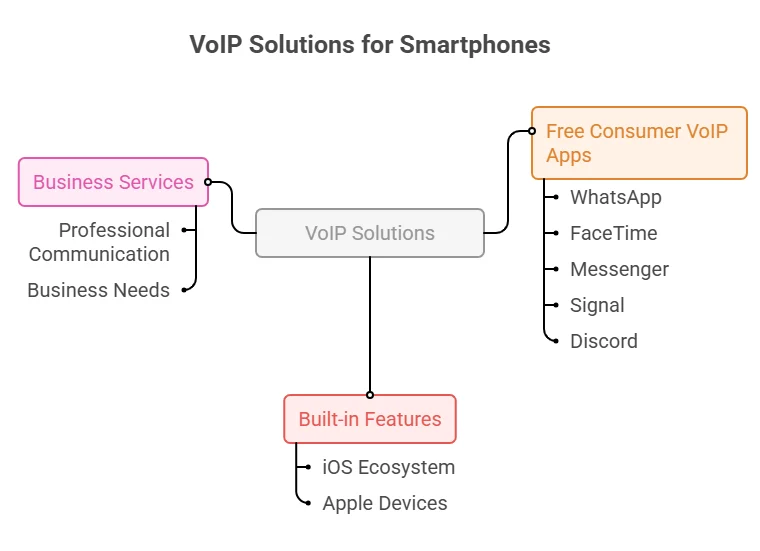
Free Consumer VoIP Apps
For personal use, especially when connecting with friends and family, free VoIP apps are an absolute game-changer. You’re likely already using one or more of these without even realizing it’s a form of VoIP.
This ubiquitous messaging app is phenomenal for international calls. It uses your data connection and allows you to call other WhatsApp users anywhere in the world for free. You’ll find yourself relying on it heavily when traveling or staying in touch with loved ones abroad.
FaceTime
If you’re an Apple user, FaceTime is your go-to for high-quality audio and video calls. It’s seamlessly integrated into the iOS ecosystem and offers a superb user experience, provided both parties are on Apple devices.
Messenger (Facebook)
Another popular choice, Messenger allows you to call your Facebook friends directly through the app. It’s convenient if a large part of your social circle is active on Facebook.
Signal
For privacy-conscious users, Signal is an excellent choice. It offers end-to-end encryption for both messages and calls, ensuring your conversations remain confidential. Its focus on security makes it a favorite for many.
Discord
While often associated with gaming communities, Discord has evolved into a powerful communication platform. It excels at group voice calls and offers clear audio, making it suitable for casual chats and even some collaborative work.
Built-in Wi-Fi Calling (Carrier-Dependent)
Many modern Android and iOS devices offer native Wi-Fi calling. This isn’t a third-party app; it’s a feature provided by your mobile carrier that allows your standard phone app to route calls over Wi-Fi when cellular service is weak or unavailable.
Enabling Android Wi-Fi Calling
On most Android devices, you can access this feature quickly. Swipe down twice from the top of your screen to open your Quick Settings panel. Look for an icon or setting labeled “Wi-Fi Calling.” Tap to enable it. You might then be prompted to set your preferences, such as prioritizing Wi-Fi for calls when available or always asking. This ensures that your default phone app intelligently switches to Wi-Fi when beneficial, letting you make and receive calls as you normally would, but over the internet.
iOS Wi-Fi Calling
For iPhone users, Wi-Fi calling is similarly integrated. Go to Settings > Phone > Wi-Fi Calling and toggle it on. You might need to confirm your emergency address. Once enabled, if you see “Wi-Fi” next to your carrier name in the status bar, your calls will be made over Wi-Fi.
Dedicated Business VoIP Services (Mobile Softphones)
For professional use, you’ll want to look at dedicated business VoIP services that offer companion mobile apps, often referred to as “softphones.” These transform your smartphone into a fully-fledged extension of your business phone system.
CloudTalk App Setup (Example: A 2026-Relevant Business VoIP)
Let’s consider CloudTalk as an example, as it represents the capabilities you’ll find in modern business VoIP solutions. To get started, you’ll typically:
Download the CloudTalk Phone App
Head to your app store (Google Play Store for Android or Apple App Store for iOS) and search for “CloudTalk Phone” or your specific business VoIP provider’s app. Download and install it just like any other application.
Log In with Admin Credentials
Once installed, open the app. You’ll be prompted to log in. Use the administrative credentials provided by your VoIP service administrator. This usually includes a username and password associated with your extension or account.
Allow Microphone and Notifications
The app will request permissions. It’s crucial to allow microphone access so you can speak and be heard during calls. Allowing notifications is also vital, as this will ensure you receive incoming call alerts and messages even when the app isn’t actively open.
Configure Sound and Other Settings
Within the app’s settings, you’ll often find options to configure sound output (e.g., whether to use the earpiece, speaker, or a Bluetooth headset), ringtones, and other preferences. Take a moment to customize these to your liking for an optimal experience. Features like HD calls, call transfers, and conferencing are typically available directly within the app’s interface after setup. You’ll also usually have access to a directory or contact management system integrated with your business’s contacts.
Quo VoIP Service (Specific Examples of Features)
The Quo VoIP service exemplifies features you can expect from a dedicated solution. After installing their app on your iPhone or Android, you’ll:
Use WiFi/4G/5G/LTE for Connectivity
Quo, like most business VoIP apps, leverages whatever internet connection you have available. This means you can be in the office on Wi-Fi, at a coffee shop on 4G, or commuting on 5G, and your business calls will function seamlessly.
Need Reliable Internet and Updated OS
A consistent theme across all VoIP usage is the need for a stable internet connection. Quo emphasizes this, and it’s a golden rule for any VoIP experience. Furthermore, keeping your device’s operating system (OS) updated is vital for app compatibility, security, and optimal performance of the VoIP software.
Support Call Forwarding and Multiple Numbers
Imagine having multiple business lines or needing to forward calls to a colleague when you’re unavailable. Quo and similar services offer these capabilities, providing a robust communication platform. This often comes at a lower cost than managing multiple traditional phone lines.
Ooma Mobile Benefits (Comprehensive Features)
Ooma Mobile is another excellent illustration of the comprehensive advantages a business VoIP app can bring:
Differentiate Business and Personal Calls
One of the standout features of Ooma is its ability to separate your business and personal calls on the same device. This helps maintain professionalism and prevents mixing work and personal life on your main mobile number. You can have a dedicated business number managed through the Ooma app, while your phone’s native dialer handles personal calls.
Support for 3G/4G/5G/WiFi
Just like other advanced VoIP solutions, Ooma ensures you’re connected wherever you have internet access, making it incredibly flexible for mobile professionals.
Advanced Features like Videoconferencing, Recording, Encryption
Ooma goes beyond just voice calls, often including integral features like video conferencing for team meetings or client calls, call recording for compliance or training purposes, and encryption to secure your communications.
Potential Cost Savings Up to 50%
The financial benefits are significant. Ooma and similar providers can help businesses cut communication costs by up to 50% compared to traditional landline services, especially when factoring in long-distance and international calling.
General Setup Steps for Any VoIP Service on Your Smartphone
Regardless of whether you’re using a free app or a sophisticated business solution, there are common foundational steps you’ll need to follow to ensure a smooth VoIP experience.
Secure a Reliable Internet Connection
This is, without a doubt, the single most critical factor for successful VoIP. Without a stable and sufficiently fast internet connection, your calls will suffer from dropped audio, delays, and poor quality.
Wi-Fi Considerations
When on Wi-Fi, ensure you’re connected to a strong, uncrowded network. Public Wi-Fi can sometimes be unreliable or have bandwidth limitations that hinder call quality. Your home or office Wi-Fi should ideally be robust enough to handle multiple devices and activities.
Mobile Data Considerations
If you’re using 4G or 5G, make sure you have a good signal strength. Be mindful of your data plan; while VoIP doesn’t consume as much data as video streaming, prolonged calls can add up, especially if you’re on a limited plan. HD voice calls use more data than standard voice.
Keep Your Smartphone’s Operating System Updated
Regularly updating your phone’s OS (iOS or Android) isn’t just about getting new features; it’s about security, bug fixes, and ensuring compatibility with the latest app versions.
Why Updates Matter for VoIP
Outdated OS versions can lead to app crashes, security vulnerabilities, and performance issues that directly impact your VoIP call quality and reliability. Always install recommended updates when they become available.
Install the Relevant VoIP App or Softphone
As discussed, this means downloading the specific app for your chosen service, whether it’s WhatsApp, Signal, CloudTalk, Ooma, or your carrier’s default phone app for Wi-Fi calling.
App Permissions
During installation or first launch, the app will ask for various permissions (microphone, notifications, contacts, etc.). Granting these is essential for the app to function correctly. Without microphone access, for instance, you won’t be able to speak during calls.
Configure SIP/Server Details (for Advanced Users/Business Services)
For dedicated VoIP services, especially those not tied to a simple username/password, you might need to manually input SIP (Session Initiation Protocol) details, server addresses, and authentication credentials.
Where to Find These Details
Your VoIP service provider or IT administrator will supply these. They typically include a SIP username (or extension number), password, and the domain or server address. Some apps simplify this with QR code scanning or automated configuration, but be prepared for manual entry if needed.
Conduct a Test Call for Quality
Once everything is set up, the final and crucial step is to make a test call. Don’t wait until an important business call to discover issues.
How to Test
Call a friend, colleague, or even your voicemail. Pay attention to:
- Audio Quality: Is the sound clear on both ends? Is there any static, echoing, or distortion?
- Latency: Is there a noticeable delay between speaking and the other person hearing you?
- Dropped Audio: Are words or parts of sentences getting cut off?
If you encounter issues, troubleshoot your internet connection first. Try
another Wi-Fi network or move to an area with better mobile data coverage. You might also check the app’s settings for audio codecs or quality preferences, if available. Some apps allow you to prioritize call quality over data usage, or vice-versa.
Optimizing Your Smartphone VoIP Experience
Simply setting up VoIP isn’t the end of the journey; optimizing your experience ensures you get the most out of this powerful technology. A few adjustments and habits can make a significant difference.
Prioritize a Strong and Stable Internet Connection
This cannot be overstated. Your internet connection is the lifeline of your VoIP calls.
Minimizing Wi-Fi Jams
When on Wi-Fi, try to avoid bandwidth-intensive activities during important calls – don’t stream 4K movies or download large files on the same network. Ensure your router is up-to-date and centrally located.
Monitoring Mobile Data
If relying on mobile data, keep an eye on your signal strength. If you’re in an area with only one or two bars, consider finding a better spot or switching to Wi-Fi if available. Some apps allow you to manually select your preferred network type for VoIP calls (e.g., Wi-Fi only, cellular data only, or automatic).
Use Quality Headphones or Headsets
Especially for business calls or in noisy environments, a good pair of headphones or a headset can drastically improve your call quality.
Benefits of Headsets
They offer better microphone pick-up, reduce background noise, and keep the phone’s speaker away from your ear, preventing feedback. Many headsets also offer more comfortable extended wear. Opt for models with noise-canceling microphones if you frequently make calls in busy public spaces.
Manage Background Apps and Notifications
Your smartphone is a multi-tasking powerhouse, but too many things running simultaneously can impact performance, including VoIP calls.
Closing Unused Apps
Before an important VoIP call, close any unnecessary background apps that might be consuming resources or data.
DND Mode for Focus
Consider enabling “Do Not Disturb” (DND) mode or a focus mode during calls. This prevents incoming notifications from other apps from interrupting your call flow or potentially causing audio glitches.
Understand Data Usage
While generally efficient, VoIP does consume data. It’s wise to be aware of how much your calls are using.
Estimating Data Consumption
A typical VoIP call uses around 0.5 MB to 1.5 MB of data per minute for standard quality, and slightly more for HD audio (around 2-3 MB per minute). Video calls, naturally, consume significantly more.
Monitoring and Budgeting
If you have a limited mobile data plan, monitor your usage through your phone’s settings or your carrier’s app. If you make frequent, long VoIP calls, especially internationally, an unlimited data plan or strong reliance on Wi-Fi will be your best approach.
Keep Your VoIP App Updated
Just like your operating system, keeping your VoIP app updated ensures you have the latest features, bug fixes, and security patches. App developers constantly work to improve call quality and stability, so regular updates are crucial for the best performance.
By following these guidelines, you’ll be well on your way to leveraging your smartphone for powerful, flexible, and cost-effective communication through VoIP. Whether for personal convenience or professional efficiency, the world of internet-based calling is now firmly in the palm of your hand.
FAQs
What is VoIP and how does it work on a smartphone?
VoIP, or Voice over Internet Protocol, is a technology that allows users to make voice calls using a broadband internet connection instead of a regular phone line. On a smartphone, VoIP works by using a mobile app that connects to the internet to transmit voice calls.
What are the benefits of using VoIP on a smartphone?
Using VoIP on a smartphone can offer cost savings on long-distance and international calls, as well as provide additional features such as video calling, conference calling, and voicemail transcription. It also allows for greater flexibility and mobility, as users can make calls from anywhere with an internet connection.
What are some popular VoIP apps for smartphones?
Some popular VoIP apps for smartphones include Skype, WhatsApp, Viber, Google Voice, and Facebook Messenger. These apps allow users to make voice and video calls, send messages, and share media over the internet.
What are the requirements for using VoIP on a smartphone?
To use VoIP on a smartphone, users need a compatible mobile device, a stable internet connection (Wi-Fi or mobile data), and a VoIP app installed on their phone. Additionally, users may need to create an account with the VoIP service provider and purchase credits or a subscription for making calls to non-app users.
Are there any potential drawbacks to using VoIP on a smartphone?
Some potential drawbacks of using VoIP on a smartphone include reliance on internet connectivity, potential call quality issues, and limited emergency calling capabilities. Additionally, users may need to be mindful of data usage if using VoIP over a mobile data connection.














Post Comment