VoIP Setup Guide: How to Set Up Your Internet Phone System
Switching from a traditional phone line to internet calling can feel confusing if you have never done it before. This VoIP Setup Guide walks you through everything you need to know, from checking your internet connection to configuring your devices, so you can get your system running smoothly without any technical headaches.
Voice over Internet Protocol, commonly known as VoIP, allows you to make calls using your internet connection instead of a regular phone line. It is widely used by businesses and individuals because it offers flexibility, mobility, and easy scalability. Once you understand the basic setup process, getting started becomes simple.
What Is VoIP and How Does It Work
VoIP converts your voice into digital data packets and sends them over the internet instead of traditional copper phone lines. When someone calls you, those data packets are converted back into audio so you can hear the conversation clearly.
Unlike landlines that rely on physical wiring, VoIP works through your existing internet connection. This means you can make and receive calls from a computer, mobile phone, or a dedicated VoIP handset as long as you have a stable internet connection.
Why Businesses and Individuals Choose VoIP
People choose VoIP because it offers flexibility that traditional phone systems simply cannot match. You can answer business calls from your laptop while traveling, forward calls to your mobile device, and manage everything through a simple online dashboard.
Checking Your Requirements Before Setup

Before diving into the setup process, it helps to confirm you have the basics covered. A smooth VoIP experience depends heavily on your internet quality and the devices you plan to use.
Internet Connection Speed
Your internet connection plays a major role in call quality. A stable broadband connection with low latency ensures your calls remain clear without dropouts or delays. If multiple people in your household or office will be using VoIP at the same time, make sure your bandwidth can support several simultaneous calls.
Choosing the Right Equipment
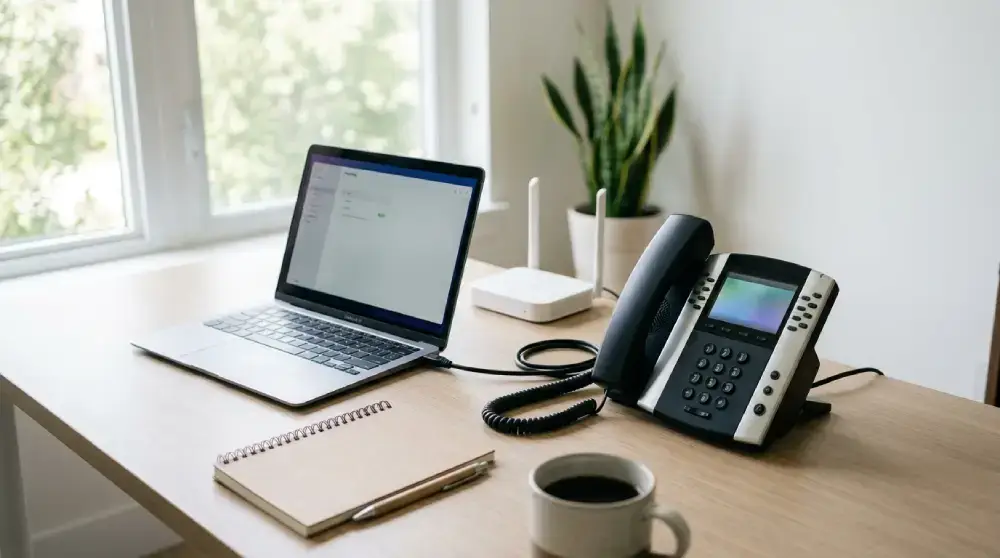
You have a few options when it comes to hardware. Some people prefer a dedicated VoIP phone that looks and functions like a traditional desk phone. Others use a headset connected to their computer through a softphone application. Both options work well depending on your personal preference and workflow.
Step by Step VoIP Setup Process
Once your internet connection and equipment are ready, the actual setup process is straightforward. Follow these steps carefully to avoid common configuration mistakes.
Selecting a VoIP Service Provider
Your first task is choosing a VoIP provider that offers the features you need, such as call forwarding, voicemail transcription, and multi device support. Look for a provider with strong customer support and reliable uptime, since call quality depends heavily on their network infrastructure.
Setting Up Your Account
After selecting a provider, you will need to create an account and choose a phone number. Many providers let you keep your existing number through a process called number porting, so you do not lose your established contact information.
Configuring Your Router
Your router settings can significantly affect call quality. Enabling Quality of Service, often labeled QoS, on your router helps prioritize voice traffic over other types of internet activity like downloads or video streaming. This reduces the chances of choppy audio during calls.
Installing the VoIP Software or Connecting Hardware
If you are using a softphone application, download it on your computer or smartphone and log in with your account credentials. If you purchased a physical VoIP phone, connect it to your router using an ethernet cable or configure it over Wi Fi following the manufacturer instructions.
Testing Your Setup
Before relying on your new system for important calls, place a few test calls to check audio clarity in both directions. Test with someone on a landline and someone on a mobile phone to confirm everything works properly across different networks.
Optimizing Call Quality After Setup
Getting VoIP running is only half the job. Optimizing your setup ensures consistent performance over time.
Reducing Network Congestion
Try to limit heavy internet activities like large downloads or video streaming during important calls. This frees up bandwidth and keeps your voice packets flowing smoothly.
Using a Wired Connection When Possible
While Wi Fi is convenient, a wired ethernet connection generally provides more stable and consistent call quality. If your VoIP phone or computer is near your router, consider using a cable connection for critical business calls.
Updating Firmware and Software Regularly
Providers frequently release updates that improve security and call performance. Keeping your VoIP app or hardware firmware updated ensures you are getting the best possible experience.
Common VoIP Setup Issues and How to Fix Them
Even with careful setup, you might run into a few hiccups along the way. Understanding common issues makes troubleshooting much easier.
Choppy or Delayed Audio
This usually points to bandwidth limitations or network congestion. Check your internet speed, close unnecessary applications, and confirm QoS settings are properly configured on your router.
One Way Audio Problems
Sometimes only one person can hear the other during a call. This is often caused by firewall or NAT settings blocking certain data packets. Adjusting your router firewall settings or contacting your provider support team usually resolves this.
Dropped Calls
Frequent call drops are typically related to unstable internet connections. Restarting your router, checking cable connections, and confirming your internet plan meets the required speed can help fix this problem.
Security Tips for Your VoIP System
Since VoIP relies on your internet connection, basic security practices help protect your system from unauthorized access.
Use Strong Passwords
Always set strong, unique passwords for your VoIP account and avoid using default login credentials provided by your hardware.
Enable Encryption
Many VoIP providers offer encrypted calling options. Enabling this feature adds an extra layer of protection to your conversations, especially important for business communications.
Conclusion
Setting up VoIP does not have to be complicated once you understand the basic building blocks involved. By checking your internet requirements, choosing the right equipment, configuring your router properly, and testing your calls thoroughly, you can enjoy a smooth and reliable calling experience. This VoIP Setup Guide gives you a clear roadmap to follow, whether you are setting up a home office or a small business communication system.
Frequently Asked Questions
What internet speed do I need for VoIP to work properly?
A stable broadband connection with low latency is generally sufficient for clear VoIP calls. The exact speed needed depends on how many simultaneous calls you plan to make.
Can I keep my existing phone number when switching to VoIP?
Yes, most VoIP providers support number porting, which allows you to transfer your existing phone number to your new VoIP account.
Do I need special hardware to use VoIP?
No, you can use VoIP through a softphone application on your computer or smartphone. A dedicated VoIP phone is optional and depends on personal preference.
Why does my VoIP call sound choppy sometimes?
Choppy audio is often caused by network congestion or limited bandwidth. Enabling Quality of Service on your router can help prioritize voice traffic and improve call clarity.
Is VoIP secure for business communication?
Yes, many providers offer encrypted calling features along with strong password protection to keep your conversations private and secure.













Post Comment