Troubleshooting Common VoIP Issues
VoIP, or Voice over Internet Protocol, has revolutionized communication by transmitting voice data over the internet. This technology, while robust, is not without its vulnerabilities. When you rely on VoIP for your business or personal calls, encountering issues can be a significant disruption. This guide aims to equip you with the knowledge to diagnose and resolve common VoIP problems, transforming you from a perplexed user into a proactive troubleshooter. Think of your VoIP system as a complex network of interconnected pipes; a blockage in one section can impact the entire flow of communication.
Before diving into specific troubleshooting steps, it’s crucial to understand the fundamental components that make up your VoIP environment. This holistic view will allow you to pinpoint potential problem areas more effectively, much like a cartographer understands the lay of the land before navigating.
Your Internet Connection: The Foundation of VoIP
Your internet connection is the bedrock upon which your VoIP service stands. Without a stable and sufficiently robust connection, your voice calls will inevitably suffer.
Bandwidth Requirements
VoIP calls, while not as data-intensive as streaming video, still require a certain amount of bandwidth. If your internet connection is already saturated with other activities like large file downloads or multiple users streaming, your VoIP quality will degrade. Imagine trying to drive a ten-lane highway with only one lane open – congestion is inevitable.
- Sufficient Upload and Download Speeds: Voice data travels both ways. While download speed often receives more attention, adequate upload speed is equally critical for clear outgoing audio.
- Contention Ratio: This refers to the number of users sharing a single internet connection. A high contention ratio, common in residential broadband, can lead to variable performance, especially during peak hours.
Latency, Jitter, and Packet Loss: The Silent Saboteurs
These three metrics are often invisible to the casual user but are critical indicators of your internet connection’s health for VoIP.
- Latency (Ping): This is the time it takes for a data packet to travel from its source to its destination and back again. High latency (anything above 150ms for a round trip) results in noticeable delays, making conversations awkward and full of interjections. It’s like talking to someone through a long, winding tunnel where your words arrive late.
- Jitter: This refers to the variation in the arrival time of data packets. While high latency is a consistent delay, jitter is an inconsistent one. It can make voices sound robotic or choppy, as your VoIP device struggles to reassemble the incoming audio stream in the correct order. Think of it as a poorly paced orchestra where instruments play at slightly different times.
- Packet Loss: This is perhaps the most detrimental issue. It occurs when data packets fail to reach their destination. For VoIP, this translates directly to missing snippets of audio, leading to dropped words or entire phrases. It’s like trying to read a book with random words missing from every sentence.
Your Network Hardware: The Intermediaries
Between your internet connection and your VoIP device lie various pieces of network hardware that play a crucial role in maintaining call quality.
Router and Modem
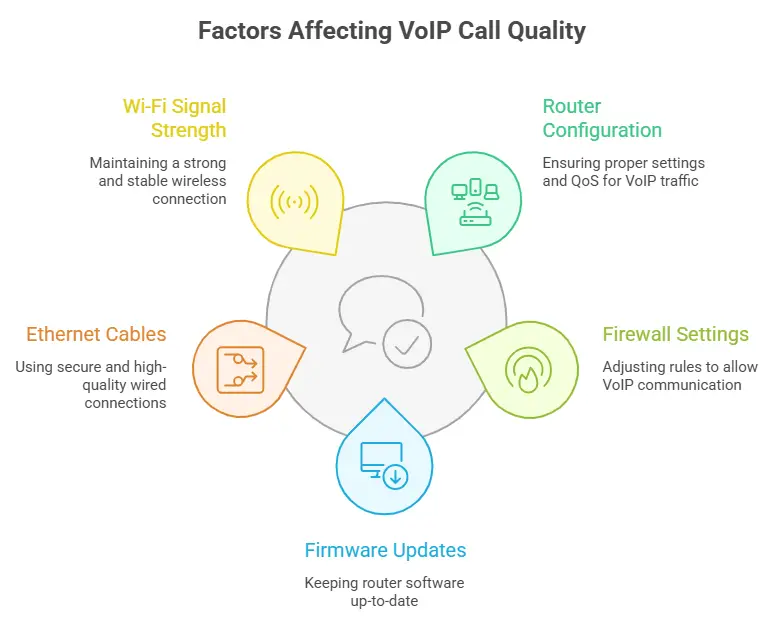
These devices are the gatekeepers of your network. An outdated, misconfigured, or overloaded router can be a significant bottleneck for VoIP traffic.
- Quality of Service (QoS): Many modern routers offer QoS features that allow you to prioritize certain types of network traffic, such as VoIP. Proper QoS configuration can ensure that your voice packets get preferential treatment over less time-sensitive data.
- Firewall Settings: Routers often include built-in firewalls. While essential for security, overly restrictive firewall rules can block VoIP traffic. You may need to open specific ports or configure NAT (Network Address Translation) appropriately.
- Firmware Updates: Regularly updating your router’s firmware can improve performance, security, and compatibility with new protocols.
Ethernet Cables and Wi-Fi
The physical connection between your devices and your network also matters.
- Wired vs. Wireless: Whenever possible, use a wired Ethernet connection for your VoIP device. Wi-Fi introduces inherent uncertainties like interference, signal degradation, and increased latency. If Wi-Fi is unavoidable, ensure your signal strength is robust and consider a dedicated wireless access point for critical VoIP devices.
- Cable Quality: Damaged or substandard Ethernet cables can introduce errors and packet loss. Ensure your cables are securely connected and in good condition.
Your VoIP Device: The Point of Interaction
Whether it’s a dedicated IP phone, a softphone application on your computer, or an ATA (Analog Telephone Adapter) connecting to a traditional phone, your VoIP device itself can be a source of issues.
Device Configuration
Incorrect settings on your VoIP device can prevent it from registering with your service provider or making/receiving calls.
- SIP Registration: Your device needs to register with your VoIP service provider’s SIP (Session Initiation Protocol) server to function. Errors in usernames, passwords, or server addresses will prevent this.
- Codec Selection: VoIP uses codecs to compress and decompress voice data. Mismatched codecs between your device and your service provider can lead to one-way audio or no audio at all.
Software Glitches
Softphone applications, like any software, can experience bugs or conflicts with other programs running on your computer.
- Updates: Keep your softphone application and your operating system updated. Updates often include bug fixes and performance improvements.
- Resource Contention: Ensure your computer has sufficient resources (CPU, RAM) to run the softphone application smoothly, especially when other demanding applications are active.
Diagnosing Common VoIP Issues
Now that you understand the components, let’s explore common problems and how to diagnose them systematically. Think of yourself as a detective, gathering clues to solve a mystery.
No Dial Tone or Cannot Make/Receive Calls
This is arguably the most frustrating issue, as it completely severs your communication link.
Check Your Internet Connection First
The most common culprit for no dial tone or call failure is a lack of internet connectivity.
- Verify Internet Access: Can you browse websites, access emails, or stream videos? If not, your internet connection is down, and that’s your primary problem to address.
- Reboot Your Modem and Router: This simple step can resolve many transient network issues by clearing out temporary glitches. Power them off for 30 seconds, then power on your modem first, wait for it to fully connect, and then power on your router.
Examine Your VoIP Device’s Status
Your VoIP phone or softphone often provides visual cues about its connection status.
- Check for Registration: Most IP phones have an indicator (often an LED or an on-screen icon) that shows whether it’s successfully registered with your VoIP provider. If it’s not registered, delve into configuration issues.
- Power Cycle Your VoIP Device: Similar to your router, restarting your VoIP phone can resolve temporary software or hardware issues.
Firewall and NAT Issues
If your internet is working but your VoIP device isn’t registering, your firewall might be blocking the necessary traffic.
- Review Router’s Firewall Settings: Ensure the firewall isn’t overly restrictive. You may need to enable SIP ALG (Application Layer Gateway) on some routers, although this can sometimes cause more issues, so proceed with caution and research your specific router model.
- Port Forwarding: In some complex network configurations, you might need to forward specific UDP and TCP ports used by SIP (typically 5060 for SIP and a range for RTP). This is usually a last resort and should be done with care, as it can potentially expose your network.
Poor Call Quality: Choppy Audio, Delays, Echo
When you can make calls but the experience is unsatisfactory, it’s usually a quality-of-service issue. This is where packet loss, latency, and jitter come to the forefront.
Test Your Internet Connection Quality
Beyond just checking for internet presence, you need to assess its performance.
- Online Speed Tests: Use reputable online speed test services (e.g., Speedtest.net, Fast.com) to measure your download, upload, and latency (ping). Perform these tests at different times of the day to identify peak usage periods.
- VoIP Pre-Check Tools: Many VoIP providers offer specific tools or recommendations for testing your network’s readiness for VoIP. These tools often analyze for jitter and packet loss directly.
Evaluate Your Network Environment
Other devices on your local network could be hogging bandwidth.
- Identify Bandwidth Hogs: Are large files being downloaded, videos streaming in 4K, or multiple users engaged in online gaming? Temporarily disconnect these devices to see if your VoIP quality improves.
- Prioritize VoIP with QoS: If your router supports QoS, configure it to give priority to VoIP traffic. This is analogous to giving an ambulance preferential treatment in traffic to ensure it reaches its destination quickly.
Address Echo and One-Way Audio
These are specific call quality issues with distinct causes.
- Echo:
- Speakerphone Usage: Using a speakerphone on either end of the call, especially in rooms with hard surfaces, can introduce echo. Try using a headset or handheld receiver.
- Headset Issues: A faulty headset or microphone can loop audio back, creating echo. Try a different headset.
- Gain Settings: On some devices, microphone gain settings might be too high, causing audio to be picked up a second time.
- Network Latency: High latency can also contribute to echo, as the audio takes too long to travel back.
- One-Way Audio:
- NAT Traversal Issues: This is a common culprit. Your router’s NAT feature might be preventing one direction of the audio stream (RTP packets) from reaching its destination. Ensure SIP ALG is not misconfigured.
- Firewall Rules: Again, overly restrictive firewall rules can block RTP ports.
- Codec Mismatch: Less common for one-way audio, but a mismatched codec can prevent one side from decoding the incoming audio.
Dropped Calls
Calls that suddenly disconnect are a sign of instability, often related to network fluctuations.
Investigate Intermittent Internet Connectivity
Dropped calls can occur if your internet connection temporarily drops even for a few seconds.
- Monitor Router Logs: Your router’s event logs can often reveal temporary disconnections or reboots that might go unnoticed.
- Contact Your ISP: If you suspect intermittent internet service, contact your Internet Service Provider to investigate line stability.
Session Timeout Settings
Some routers or VoIP devices have SIP session timeout settings that might be too aggressive.
- SIP Session Timers: If these timers are set too low, your device might prematurely terminate a call if it doesn’t receive keep-alive messages. Consult your router or VoIP device manual for these settings.
SIP ALG Considerations
While sometimes helpful, SIP ALG can also be a source of dropped calls, particularly if it’s poorly implemented on your router.
- Test with SIP ALG Disabled: If you’ve tried other solutions, consider temporarily disabling SIP ALG on your router to see if it resolves the dropped call issue. If it does, then your router’s SIP ALG implementation is likely problematic, and you may need to look for a router with a better implementation or explore other NAT traversal techniques.
Advanced Troubleshooting and Prevention
Once you’ve tackled the immediate problems, consider proactive measures and deeper diagnostics.
Using Network Analysis Tools
For more complex issues, you may need to delve into network packet analysis.
- Wireshark: This open-source packet analyzer allows you to capture and inspect network traffic. By analyzing SIP and RTP packets, you can identify precisely where communication is failing, whether it’s a registration issue, missing audio packets, or malformed messages. This is like having an X-ray machine for your network traffic.
- Ping and Traceroute: These command-line tools can help diagnose latency and identify problematic hops along the network path to your VoIP provider. A high ping indicates latency, and a traceroute can show you where that latency is occurring.
Router/Firewall Best Practices
Optimizing your network hardware settings can prevent many VoIP issues.
- Dedicated Bandwidth for VoIP: If your business heavily relies on VoIP, consider a separate internet connection or a truly managed QoS solution that guarantees bandwidth for voice traffic.
- Static IP Addresses: Assigning a static IP address to your VoIP device can sometimes simplify NAT traversal and reduce registration issues, especially in complex office environments.
- UPnP (Universal Plug and Play): While convenient, UPnP can be a security risk and sometimes interferes with VoIP. It’s often better to manually configure port forwarding or rely on well-behaved NAT traversal.
Regular Maintenance
Just like any complex system, your VoIP setup benefits from routine attention.
- Firmware and Software Updates: Keep all your devices and applications updated. Manufacturers regularly release updates that patch vulnerabilities, improve performance, and address compatibility issues.
- Review Network Usage: Periodically monitor your network for unexpected bandwidth consumption. Unidentified devices or malicious software could be consuming resources.
- Document Your Configuration: Keep a record of your router settings, VoIP device configurations, and service provider credentials. This documentation will be invaluable if you ever need to reconfigure or troubleshoot a major issue.
By systematically approaching VoIP problems, understanding the underlying network principles, and utilizing the right tools, you can effectively diagnose and resolve most common issues. Your ability to communicate clearly and reliably is paramount, and with these troubleshooting skills, you can ensure your VoIP system remains a powerful and dependable tool.
FAQs
What is a common issue with VoIP?
A common issue with VoIP (Voice over Internet Protocol) is call quality problems, such as latency, jitter, and packet loss, which can result in choppy audio or dropped calls.
How does internet connection affect VoIP performance?
VoIP relies on a stable and high-speed internet connection. Poor bandwidth, high latency, or network congestion can degrade call quality and cause interruptions.
Can power outages impact VoIP services?
Yes, unlike traditional phone lines, VoIP services depend on internet and power availability. During power outages, unless there is a backup power source, VoIP phones may stop working.
Are there security concerns associated with VoIP?
VoIP systems can be vulnerable to security threats such as hacking, eavesdropping, and denial-of-service attacks if not properly secured with encryption and firewalls.
What measures can improve VoIP call quality?
Improving VoIP call quality can be achieved by using Quality of Service (QoS) settings on routers, ensuring sufficient bandwidth, using wired connections instead of Wi-Fi, and keeping software and hardware updated.












Post Comment